Showing posts with label tutorial. Show all posts

Tuesday, September 1, 2009

How to fix a missing uninstall button in Windows XP

I often have the problem that I cannot uninstall some programs in Windows XP. The programs are listed in the "Installed Programs" dialog, but the uninstall button is missing. Today I found a workaround how to re-enable this button:

  1. Open the registry editor (Run: regedit.exe)
  2. Navigate to HKEY_CLASSES_ROOT\Installer\Products
  3. Then locate a subkey where ProductName is equal to the program to fix
  4. Within that key, find a path that starts with C:\Windows\Installer followed by a GUID (e.g. {0A869A65-8C94-4F7C-A5C7-972D3C8CED9E}). Most of the time you will find this value in the ProductIcon value
  5. Copy the GUID to the clipboard
  6. Then navigate to HKEY_LOCAL_MACHINE\SOFTWARE\Microsoft\Windows\CurrentVersion\Uninstall and check if there is a key with that GUID.
  7. If there is no such key, simply add a new key by right-clicking on the Uninstall-Key and paste the GUID (including the { and } characters) as its name. You do not need to add any additional keys or data.
  8. Now the un-installation should work as intended
I found another explanation on the web that said that sometimes there is a NoRemove key in an existing Uninstall entry. This value must be set to 0.
Note: Use all of the above at your own risk!

Tuesday, May 19, 2009

Multilingual DVB-T Experience for Free

Last week we got ourselves a new DVB-T stick. Unfortunately the software that was provided with it only allows to watch TV in German, even though an English audio stream is attached on some programs.

Even free programs like ProgDVB do not allow changing the audio channel to a foreign language - they want you to buy the Pro version which has this feature enabled.

But I found one program that allows DVB programs to be viewed with all audio streams enabled: Video Lan Client!

Newer versions have a DVB-T access module plus GUI that enables full access to DVB television. The only thing I haven't found so far is a channel list editor that works. Nevertheless the only thing you need to enter is the frequency and bandwidth of the program you want to watch. It should work with most USB DVB-T sticks on the market.

From the Media menu select the Open Capture Device... item. Then select DVB DirectShow option from the Capture mode. Now enter the correct frequency of your provider and set the bandwidth. You can either copy these settings from another DVB program or look them up on the internet.

Now you can select a program stream via the Playback menu. I noticed that the default settings do not enable deinterlacing. This can easily be changed from the Video menu. Finally, the most important setting for me is in the Audio menu where I can set the Audio Track to any available stream.

Thursday, April 16, 2009

How to use Manual Exposure on Canon EOS Cameras

This tutorial teaches you how to use the manual exposure mode or "M"-mode on any Canon EOS camera. I will show some examples from my Canon EOS 400D but the techniques should stay the same across different models.

Why would you want to shoot in Manual Mode when you have automatic modes (P/Av/Tv) that can handle almost any light situation automatically? Because they can do it only "almost". Sometimes the light in a scene is too difficult for the light meter. At other times, you want to get the exact exposure of a scene every time. Then you should consider turning your mode wheel to the "M"-mode.

Exposure Basics
First, I will talk a little about the basics of exposure of cameras. The three factors that control exposure are:

  • Shutter Speed - how long you expose the photo (e.g. 1/200)
  • Aperture - How much light you allow through your lens (e.g. F/8.0)
  • ISO sensitivity - amplification of the light on the sensor (e.g. ISO 100)
Changing one of them will affect the exposure of the photo. If you change another factor, you can compensate or amplify the first change.
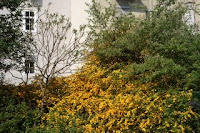
1/200 at F/8.0To make this more clear, I will explain it by using an example. Let's say the light meter tells you that the scene you are looking at requires a setting of 1/200s at F/8.0 using ISO 100. The picture on the right was taken with these exact settings.
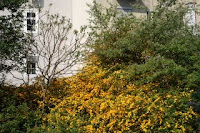
1/400 at F/5.6If you do not want to have a shutter speed of 1/200s, it is possible to set it to 1/400. As you only will have half the exposure time then, you need to compensate to get the same amount of light in your photo. You can either do this by increasing the ISO to 200 (double the sensitivity) or open up the aperture by one stop to F/5.6.

The two pictures above were made with the described change of the aperture. The second image looks almost the same. By opening the aperture, you will have a more shallow depth of field though.

The following exposure/aperture settings will also produce an correctly exposed photo:
Time:1/251/501/1001/2001/400
Aperture:F/22F/16F/11F/8.0F/5.6
The table only shows one-stop increments. Most cameras support 1/3 stop increments, so there are 2 more possible combinations per entry. For more information take a look at F-Numbers on Wikipedia.

Reading the Histogram
The most important measurement tool for the manual mode will be the histogram. It tells you the exact distribution of tonal values in your photo. This means you can determine if your image is correctly exposed (you can find more information here). I will not go into detail about how a correctly exposed histogram should look like because this depends pretty much on the scene. What is important is to recognize and under- and overexposed image.
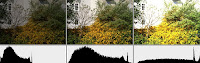

The picture above shows an underexposed, correctly and overexposed version of the photo. As you can see, the underexposed image lacks all high tonal values. The overexposed version does look quite OK in the histogram, but the high tone values start gathering at the brightest value. This leads to 100% white pixels in some areas.

Manual Exposure
Now you know all the basics that you need to know in order to operate your camera in manual mode. All you need to do is to set set the initial exposure and then work with the histogram until it looks right to you.

In order not to start with a random guess about correct exposure values, it can help to set the camera into Program mode (P) and copy the suggested values to manual mode. Also, the camera shows the light meter in manual mode. The light meter is the bar that reads -2..1..0..1..2 and has a blinking bar. Try to get the bar to stop below 0 (you need to half-press the shutter button to get it to work).

Then you can adjust your settings by changing either the exposure or the aperture value. Canon cameras support 1/3 stop increments. So when your image is underexposed by one exposure value (EV) or stop, you need to open up the aperture by 3 times 1/3 steps or increase the exposure time by 3 steps (double the exposure time).

On the Canon EOS 400D you can change the exposure time by turning the wheel next to the shutter release button. The aperture can be changed by simultaneously pressing the Av button next to the screen and turning the wheel.

To check your photo's histogram, take a picture and show the picture on your camera. Now press the DISP. button until the histogram is shown on the screen. The histogram has four gray vertical bars on it which are spaced at one-stop increments. This means that if you change the exposure time by one stop, the whole histogram will shift by exactly one bar. This is very useful to estimate how much you should change your settings.

Bar number 2 from the left is the 18% gray bar. This means that your camera will try to balance your picture around that exposure in auto mode. To verify this, you can take a shot of a clear blue sky or a white wall in auto mode. Then you should see a large peak of the histogram exactly there.

Now change the settings of aperture, exposure time and ISO as you like. When you have found the correct settings, you can take as many pictures of the same subject at the same light as you like. No matter what disturbs the camera's light meter, you will not get under- or overexposed photos.

When to use Manual Mode
I use manual mode in the following situations:
  • Night shots
  • When using an external flash (in order to balance between flash and available light)
  • Difficult lit indoor scenes, especially with backlight
  • changing lights that do not affect the subject directly
But you can find out for yourself when to use the manual mode. Whenever you get wrong results for a type of subject, start to think about going manual.

Do not forget to switch the camera back to an automatic mode afterwards. It's too easy to forget that the camera will not set the correct exposure automatically. This can ruin some shots if you don't think about it.

If you have any questions or find some parts of this tutorial not understandable, please leave a comment! I'll try to clarify it for you then.

Sunday, September 28, 2008

Make Money with your Photos

View My Portfolio
It's been a while since my last post. That's partly due to my work and studies but to a new use of my photos as well.

After being on flickr for a little more than a year now, I started selling my images on various stock images sites. Why? Because you can make real money there and if you are seriously into photography, you need to make some money to afford all the equipment.

How does it work? You need sign up and take a short test to prove that your photos are ready for stock. This means that you can't sell your snapshots on stock-photo sites. It's all about pictures that sell. And only things that will be used can also be sold.

Just take a local newspaper or magazine and browse through the pages and read where the photos come from (e.g. ©iStockphoto / Photographer). I hardly see any newspaper that does not use stock photos. They are a lot cheaper than paying a photographer take the images on demand. But they give you only some idea what it means for an image to be a good stock image.

Once you've started uploaded your first image, you will need to wait for 7 to 10 days until it has been reviewed. This means that some woman or guy somewhere in the world will have to look at your photo and check if that picture is compliant to the rules. This means no noise, no company names or logos, no artifacts and loads of other reasons that would make your image not useable. Don't be disappointed if your images get rejected. I have not yet exceeded the 50% approval rate so far which means I still need to learn and improve.

So, if you like to enter the world of stock photography the doors are open. Everyone is accepted and there is a fair competition with those already in the business. The only thing that counts is that your image can be used by someone out there!

Of course, if you like to buy on of my images, just use the following link and license your copy...
View My Portfolio

Monday, June 30, 2008

Focal Length Calculation for a DSLR Camera

Canon 400D with a Vivitar 400mm Lens
As I'm studying for a subject concerning cameras at university, I have to used a formula for calculating the required focal length to fill the sensor with an image. And I thought this formula could be quite practical for you as well.

That formula is
f = d * I / (I + O)
where f[m] denotes the required focal length to picture an image with the width of O[m] on the sensor with the width of I[m] when the object is d[m] away from the camera.

For my Canon EOS 400D camera with a sensor dimension of 22.2mm x 14.8mm a sample calculation could look like this:

I would like to picture an object that is 20cm wide and 1m away from my camera. So I set d = 1m, O = 0.02m and I = 0.0148m (sensor width).
Inserting into the formula from above this gives me a focal length of f=0.0689m or 69mm.

This formula is valid for all cameras (just find out your sensor dimensions) and all lenses.

Saturday, May 3, 2008

Software Update for Nokia 5310 Version 5.81

Today I updated my Nokia 5310 phone to the new 5.81 version. As I have read that there may be some problems with it I thought I'd report about my experience on my blog.

To find out what version is installed on your phone, type in *#0000# using your keypad. I had the 3.6 version installed. So I downloaded the latest version of the Nokia Software Updater. After a reboot it detected my phone connected via the USB cable.
I took the hint to backup the phone settings seriously. You can do that via the phone menu. Go to the Setting->Sync and backup->Create Backup submenu.

Then I started the update which ran automatically without problems. 10 minutes later the phone rebooted and requested the PIN code. Unfortunately all my personal data were deleted. So I had to restore the data I backed up before. That worked quite fine and I didn't loose any contact info or calendar settings.

What's new?
So far I found the following new options and functionalities:

  • I can now add Java programs to my favorite's list.

  • There is now a quick dial function. Just press one of the keys from 2 to 9 for 2 seconds.

Update: The newest version is V 09.42 which can be installed just as easy. I haven't found any major improvements yet (except for a new status bar when loading things).

Saturday, April 5, 2008

Cokin Filter System on my Canon EOS 400D

My newest purchase for my Canon EOS 400D camera is a part of the Cokin Filter System. It basically consists of a filter holder and an adapter for 58mm lenses. The filter holder can hold a variety of filters. The set I got from eBay consisted of 7 filters including stars, blue color, pastel and others.
Later, I bought a much desired gradient filter and closeup lens (+3). Compared to the price of individual screw in filters, Cokin filters only cost a fraction if you buy them on the used market as most of them only consist of a glass plate with some printing on it.
I'd like to give you a review of the filters I have got. It may help you decide if you want to buy the same for your digital or analog camera. I will continue this list as I gain more experience and probably more filters.

Diffractor Galaxy (42)
This is a very odd filter that adds rainbow like beams to point light sources. The effect is rather strong and I think it destroys more of the image than adds to it.

Star 4 (57 A)
This filter adds nice star effects to your image. You can rotate it and use it for point light sources like street lamps at night.

Parallel (58)
This works similar like the star filter but only creates stars with two beams of light. You can also use it for point light sources like this image.

Spot-Orange (66)
This is an orange glass with a transparent circle in the middle. I have not found suitable scenes where to use it yet.

Coef. + 2 BLUE (80 A)
This is a blue filter that makes the colors the image. I made some wonderful images with a cloudy sky.

Pastel 2 (87)
This filter makes the picture look much smoother, almost like a painting. I found it best for closeups and the effect destroys the image on wide angle scenes. But for flower pictures it really adds a lot to the image.

Close-up +3 (103 A)
This is a classic closeup filter that allows you to move your camera closer to objects.

Gradual G1 Grey (120 A)
This filter is a gradual gray filter. You can use it to make the sky darker than the foreground which helps you a lot when it comes to correct exposure in high contrast outdoor scenes. You could do this effect on your computer when shooting in RAW but for JPEG images you get best quality when using this filter. The filter is color neutral and you can rotate the filter holder to adjust the effect.

Thursday, November 1, 2007

HDR Tutorial for Canon EOS 400D


Schlossberg Stiege in Graz
Originally uploaded by theowl84
In the last weeks I had some time to experiment with my new camera. One of the reasons for buying it was the possibility to use the Auto Exposure Bracketing function (AEB). This setting can be used to let the camera shot three pictures with different exposure settings.

I use a mini tripod and the timer function to avoid any shake of the camera, especially for night-time-HDRs. I'll give you a small tutorial about how I do it:
  • Mount the camera on a mini tripod
  • Set the camera into Aperture-Priority (Av)
  • Get into the menu "Camera 2" and set the AEB to -2/0/+2
  • Change the shoot mode to self-timer to delay the shutter by 10 seconds (press the button below the AV+/- button to do this)
  • Find a nice place for the camera where it can stand on it's own. You must not touch the camera when the shutter is open.
  • For some scenes it's good to manually change the basic exposure to an adequate level (This is necessary when the brightest picture is too bright or the darkest picture is too dark)
  • Then press the shutter button and wait 10 seconds for the camera to start shooting. It will make 3 successive shots automatically.
  • Setup for HDR
  • The setup should now look like the screenshot on the right.
  • After the pictures have been taken you should review all pictures and assure that all details are at least visible in one picture (for example very bright objects should be clearly visible in the darkest picture)
  • If you are not content with your picture series, manually change the basic exposure and re-shoot the entire series.
  • Now you can load the pictures to your PC and use your favorite HDR software to create magic pictures.

A few examples
Schlossberg Tunnel HDR
You can see many other HDR pictures on my flickr page.